
Olikive guide · version 0.9.3
Install it, use it, fix it.
Everything an administrator, an audit team and a business owner need: putting Olikive on your SharePoint site, the first week of using it, and what to do when something doesn't look right.
Part 1
Install & upgrade
Olikive is one SharePoint package and one setup wizard. There is no server, no service account and no external hosting: it runs as the signed-in person, with that person's SharePoint permissions.
- 1
Deploy the package
App catalog owner
- 2
Run setup
Site owner
- 3
Give people access
Site owner or Olikive admin
- 4
Optional extras
Notifications, Teams, licence
Before you start
You need
- Microsoft 365 with SharePoint Online
- Someone who can upload to the app catalog (usually a SharePoint administrator)
- A SharePoint site for Internal Audit, and a site owner for it. A communication site works well
- The package file,
olikive.sppkg
You don't need
- Microsoft Graph or API permissions. Olikive asks for none, so there is nothing for a tenant admin to approve
- Azure, a server or a service account
- Premium Power Automate connectors
- Custom scripts enabled on the site
1Deploy the package
Done once by the app catalog owner, and again for every new version.
- Open your app catalog → Apps for SharePoint → Upload and choose
olikive.sppkg. - In the dialog that opens, tick Make this solution available to all sites in the organization (wording varies: Enable app / add to all sites) and click Deploy.
- Check the catalog row rather than trusting the click. It should look like this:
| Name | App version | Valid app package | Deployed | Added to all sites | Error message |
|---|---|---|---|---|---|
| olikive.sppkg | 0.9.3.0 | Yes | Yes | Yes | No errors. |
olikive.sppkg, every later version must be uploaded as olikive.sppkg too. Rename the download before uploading if you need to. A file called, say, olikive-0.9.3.sppkg becomes a second, invalid row. See the fix.
- Open the Internal Audit page and look at the version at the bottom of the left navigation. It should read the version you just deployed, for example
Version 0.9.3.
2Run setup
Done once by a site owner of the Internal Audit site. Nobody else sees the wizard; other people see a message until setup is complete.
- On the Internal Audit site, add a page with the Olikive – Internal Audit web part at full width, or use the Single part app page layout. Publish it.
- Open the page. The setup wizard starts. Check the version in the wizard's header first: it must match the version you deployed. If it shows an older one, stop and see the page shows the old version.
- Work through the six steps:
- Organization
- Internal Audit team
- Methodology
- Business structure
- Notifications
- Review & install
Connect this SharePoint site and configure your Internal Audit function. About five minutes. · Version 0.9.3
Review & install
What the wizard does
- Inspects the site and shows what it will create, including conflicts (columns that already exist with a different type)
- Creates the lists, libraries, columns, groups and permission levels only after you confirm
- Saves your answers: fiscal year, methodology, business units, team, reminder rules
- Is safe to repeat: it keeps existing data and only adds what is missing
Sample data
Leave Load sample data unticked on the site you will use for real audits. Tick it only on a trial or training site. Sample records are marked as demo data so they are easy to tell apart.
3Give people access
Olikive uses SharePoint permissions as its security boundary: what someone can open in SharePoint is what they can see in Olikive. Setup creates the groups; you add people to them in Site settings → People and groups.
| Group | Put in it | What they can do |
|---|---|---|
IA Administrators | Olikive administrators | Everything, including Administration |
IA Leadership | Chief Audit Executive, directors | Work on all audits, run confidential engagements, approve reports, create engagement pages |
IA Managers | Audit managers | As leadership: start engagements, share with business owners, confidential engagements |
IA Auditors | Audit staff | Work on engagements they can see; send requests to owners |
IA Executive Readers | Executives, Audit Committee | Read engagements, plans and reports (not confidential ones) |
| Nobody to add | Business owners and other employees | Only the requests, findings and actions shared with them, one item at a time |
Then, in Olikive, open Administration → Team and add each auditor with their app role (CAE, Audit Director, Audit Manager, Auditor) and capacity. This drives assignments, the review rules and team capacity.
4Optional extras
Notifications
Olikive never sends e-mail itself. It queues reminders, and a Power Automate flow (standard connectors) delivers them. Until a tested flow is recorded under Administration → Notifications → Record tested flow, the app shows Notifications are not configured.
Microsoft Teams
In the app catalog, select Olikive → Sync to Teams. People add it as a personal app or a team tab. It finds your Olikive site by itself; nothing for IT to set up. If it can't, it asks for the site address.
Licence
Every new site runs a 30-day evaluation. Open Administration → Licence, send the Microsoft 365 tenant id shown there to us, then paste the key we return (it starts with FW1.) and Save.
Also set a support address under Administration → Support (your IT service desk or the Olikive administrator). It is where Report a problem sends people.
Upgrading to a new version
Upgrades never remove data. You do not uninstall anything.
- Rename the new package to the exact file name of the existing catalog item.
- Upload it to Apps for SharePoint. SharePoint asks whether to replace the existing app: yes.
- Click Deploy and check the catalog row: new version, Valid Yes, Deployed Yes, “No errors.”
- Refresh the Internal Audit page and check the version at the bottom of the navigation.
- If the page says Olikive has been updated: setup needs to finish on this site, a site owner clicks the link it shows (or adds
?setup=1to the page address) and runs the wizard. Most upgrades don't need this; when they do, it only adds what is new.
Part 2
Quick start
The five flows that make up most of an audit, in the order you will meet them. Buttons are named exactly as they appear in the app.
Getting around
- 1 Full screen: hides the SharePoint chrome for more room.
- 2 Report a problem, not Help. A red dot on it means errors were recorded in this tab.
- 3 Who you are signed in as, and your role. Every action is recorded under this name.
The left navigation is grouped Plan (Audit Universe, Risk Assessment, Audit Plan, Team & capacity), Execute (Engagements, Requests (PBC), Issues & Remediation) and Report (Reports, Audit Committee), with Administration and Audit Trail at the bottom for those who have them. The version is shown under the navigation.
Each role gets its own home page:


Start an engagement Manager and above
- Engagements → Start engagement, or Start on an item of the approved Audit Plan.
- Choose the auditable entity, the team, whether it is confidential, and the program procedures to copy from the library. Leave create page on: the engagement gets its own page that shows only that audit.
- In the engagement, open Risks & controls: add risks (or From risk library) and the controls that mitigate them. A risk with no control is flagged.
- In Program, add procedures with New procedure or Copy from library. A Testing step needs a Control tested.
- Move the engagement along its stages with the buttons at the top: Start planning, Start fieldwork, Move to reporting…
- Proposed
- Planning
- Fieldwork
- Reporting
- Management Response
- Final
- Closed
Workpapers & review Auditors and reviewers
- Open a procedure in Program and click Start.
- Record the work and results. Under Workpaper files, create a prefilled Word workpaper or Excel test sheet, or upload a file. Files are stored under the procedure in the engagement's evidence folder.
- Sign off as preparer, then Submit for review.
- The reviewer either Return with review notes or Approve as reviewer. The preparer answers notes and clicks Notes addressed: resubmit.
- Once approved, the workpaper locks. Editing one of its files afterwards (even directly in Word or Excel) sends it back for review.

- Not Started
- In Progress
- Prepared
- Submitted for Review
- Review Notes
- Approved
With several reviewers, tick Review in sequence to have them approve in order. Changing reviewers during review restarts it. Nobody can review their own work.
Requests for information (PBC) Auditors and business owners
Audit team
- In the engagement's Requests tab, create the request: what is needed, why, the owner and the due date.
- Send to owner. Olikive shares the request and a private upload folder with them.
- When it comes back: Begin review, then Accept as complete or Mark incomplete with a comment (it appears in the discussion).
Business owner
- Open it from My requests. Optionally Acknowledge.
- Upload files. They go to a folder only you and the audit team can see.
- Ask questions in Discussion, add context, then Submit response.


- Draft
- Sent
- Acknowledged
- Submitted
- Auditor Review
- Incomplete
- Complete
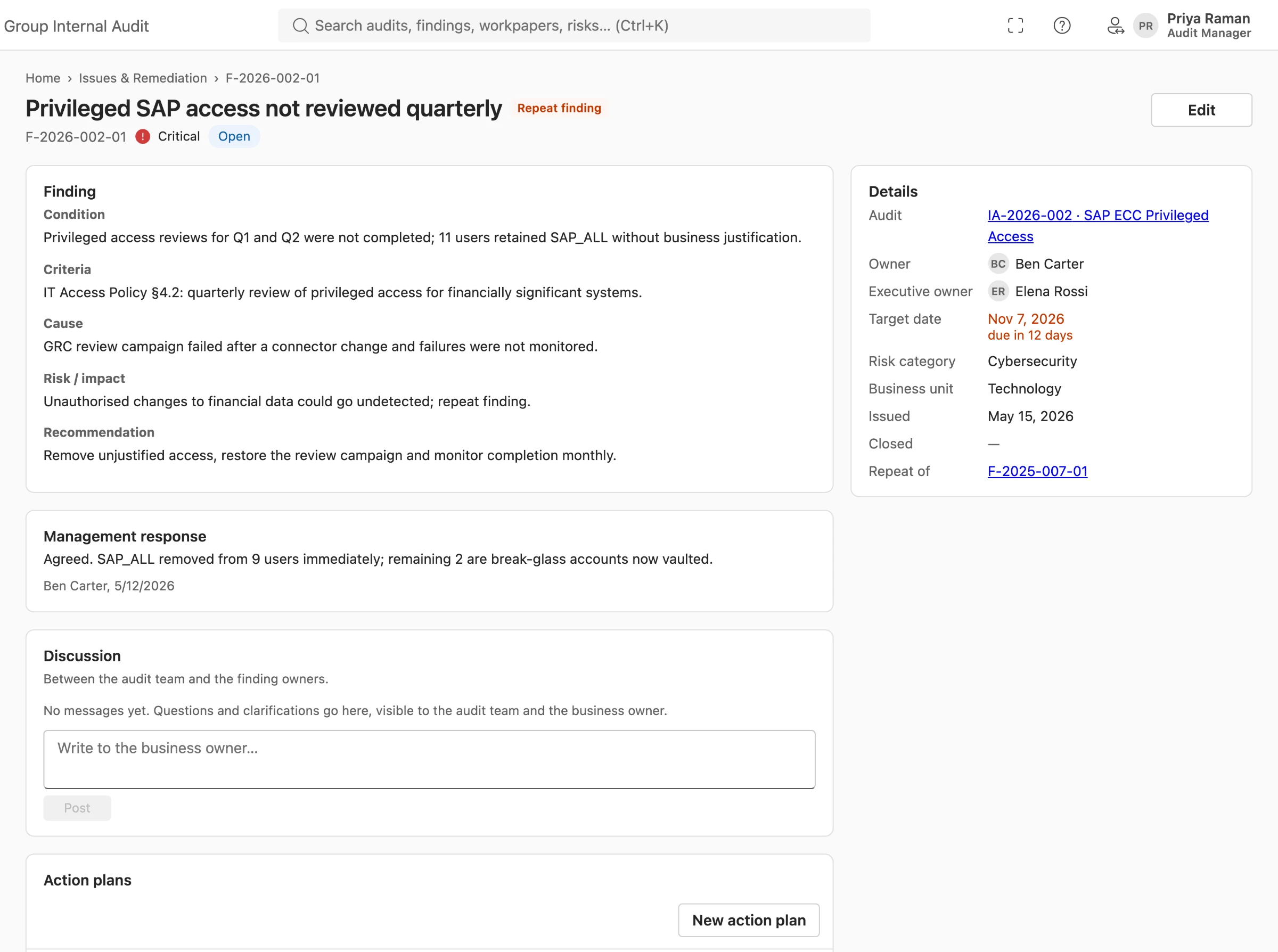
Findings & action plans Audit team and finding owners
- Raise finding from a procedure (or from the engagement's Findings tab). Write condition, criteria, cause, effect, rating.
- Submit for internal review, then Send to management.
- The owner opens it from My findings & actions, writes the management response, proposes action plans (action, owner, due date) and clicks Submit management response.
- The team clicks Issue (open for remediation). Each action plan is shared with its owner.
- The owner does the work and clicks Submit remediation evidence. The team validates: Accept and close, Request additional evidence or Reject remediation.
Report & Audit Committee Managers, directors, CAE
The audit report
In the engagement's Report tab, generate the draft from your Word template (filled with the findings and responses) or upload one. The preparer submits it, reviewers review in order, and a director who is not the preparer approves it for issue. Issue draft report for management response and later Issue final report move the engagement on.
The Committee pack
Audit Committee shows plan progress, findings by rating and overdue actions. Export it to PowerPoint, CSV or PDF, or save a snapshot: a fixed copy for the meeting, kept apart from live data.

For business owners: a one-minute guide

Internal Audit uses Olikive to ask you for information and to agree actions with you. You don't need training or a licence. Open the link in your e-mail or Teams message, or the Internal Audit page. You will see three things:
- My work: everything waiting for you, with due dates.
- My requests: upload what is asked for, ask questions in the discussion, then Submit response.
- My findings & actions: write your response, propose actions, submit evidence when done, or ask for an extension.
You only see items shared with you. Your files go to a private folder visible to you and the audit team only.
Part 3
Working in Olikive
Habits and rules that make daily use smoother, and explain why the app behaves the way it does.
Find anything with Ctrl+K
The search box at the top finds audits, findings, workpapers and risks. Every page has its own address, so you can bookmark it or paste it into a chat.
One account per browser
If you have several Microsoft accounts (a test account, a second tenant), use a separate browser profile or an InPrivate window for each. Mixed sign-ins are the most common cause of pages that won't load or actions recorded under the wrong name.
The app tells you why
When a button is unavailable or an action is refused, Olikive says why in plain words, for example that all procedures must be approved, or that a reviewer can't approve their own work. Read the message before reporting a problem.
Approved means locked
Approved workpapers, issued findings and closed engagements are locked. To change one, use the matching Reopen action, which is recorded.
Nothing is deleted
The audit team can't delete records. Remove from engagement and Unlink deactivate instead, and the change stays in the audit trail. This is deliberate: an audit file must be complete.
Talk in the discussion
Requests, findings and action plans have a Discussion that the team and the owner both see. Returns with a comment land there too, so the history stays with the item instead of in e-mail.
Confidential engagements
A confidential engagement, its evidence, its page and everything created in it are visible only to its team, IA leadership and administrators. After changing the team, click Update access.
Use the engagement page
Each engagement has its own page. Share that link with the team; it opens straight into the engagement workspace.

The audit trail
Every change, approval, sign-off and permission grant is written to an append-only trail. Open Audit Trail to filter by record, action or person, and export it for external auditors or a quality review.
Verify integrity re-checks the hash chains and confirms nothing has been altered, for example All hash chains verified for 365 records. Older-format entries are reported separately, not as failures.
Business owners can see only the trail entries they created themselves.
Olikive in Microsoft Teams
Add Olikive as a personal app or as a tab in a team channel. It finds the Olikive site automatically: one site opens directly, several are offered as a list. A brand-new site can take a few hours to appear in SharePoint search; until then it asks for the site address. For a channel tab you can always type the address in the tab's settings (Olikive site address).
Inside Teams, Olikive acts as the browser's SharePoint sign-in, not the Teams one. If they differ, it warns you before opening. See Sign-in & Teams.
Part 4
Troubleshooting
Find the message or symptom you see. Each entry says what it means and what to do, in order. If none fits, report a problem: it collects what support needs in one file.
Installing & upgrading
“A solution with the same product ID already exists. Please upload the file with the same name and replace the existing solution.”
What it means: the package was uploaded under a different file name from the item already in the catalog, so SharePoint created a second row for the same app. That row shows Valid: No, Deployed: No, and its Deploy button is disabled.
| Name | App version | Valid | Deployed |
|---|---|---|---|
| olikive.sppkg | 0.9.2.0 | Yes | Yes |
| olikive-0.9.3.sppkg | 0.9.3.0 | No | No |
Fix:
- Rename your package file to exactly the name of the deployed row (here
olikive.sppkg). - Upload it again and choose to replace the existing app. Deploy, then check the row.
- The invalid duplicate is harmless. You can remove it; never remove the deployed row.
“The security validation for this page is invalid” while uploading
What it means: the catalog page had been open for a while and its security token expired. Nothing was changed.
Fix: reload the app catalog page and upload again.
After an upgrade the page still shows the old version, or stays on “Loading Olikive…”
What it means: the catalog has the new version, but the page (or your browser) is still serving the previous one.
Fix, in order. Stop as soon as the version is right:
- Check the catalog row really shows the new version, Valid: Yes, Deployed: Yes.
- Wait a few minutes, then hard-refresh the page (Ctrl+Shift+R, or ⌘+Shift+R on a Mac).
- Edit the page, delete the Olikive – Internal Audit web part, add it again from the toolbox, and Republish. Your data is not affected: it lives in the lists, not in the web part.
- If it is still old, click Deploy on the catalog row again and refresh.
Don't run the setup wizard until it shows the version you deployed.
“Olikive has been updated: setup needs to finish on this site”
What it means: the new version needs a few new columns or lists on your site. Olikive waits rather than run against the old ones.
Fix: a site owner clicks the link in the message (or adds ?setup=1 to the page address), checks the wizard shows the new version, and runs Review & install. It only adds what is missing and never removes data. Everyone else just refreshes afterwards.
“Olikive needs updating”
What it means: this site was set up by a newer version than the one the page is running, usually because an older package was uploaded. Olikive changes nothing in this state.
Fix: the app catalog owner uploads and deploys the latest olikive.sppkg (same file name as the catalog item), then refresh.
The setup wizard lists conflicts
What it means: a column Olikive needs already exists on the site with a different type, usually from an earlier tool on the same site. The wizard never changes or deletes such a column.
Fix: note the list and column names it shows and send them to your Olikive administrator or support. Use a fresh site for Internal Audit if you can.
The Olikive web part isn't in the page's toolbox
Check: the catalog row is Deployed: Yes and Added to all sites: Yes. Give it a few minutes after deploying and reload the page editor.
If it still doesn't appear, contact support with a screenshot of the catalog row.
Loading & start-up
“Loading Olikive…” never finishes (the version is correct)
- Look at the line under the loading message: it names the step Olikive is on. Note it.
- Try a clean window: an InPrivate/Incognito window, or a browser profile signed in with only your work account. Several accounts in one browser is the most common cause.
- Hard-refresh. If it still hangs, use Report a problem or the start-up screen's Copy details for support.
“This page could not be shown”
One page hit an error; the rest of Olikive still works. Click Report a problem on that screen (or Copy details) and send it to support. Moving to another page and back often clears it.
A “Read-only” banner, or “Evaluation copy: N days left”
This is the licence. During evaluation and the 30 days after expiry everything works. After that Olikive becomes read-only: viewing, the audit trail and Administration still work; changes don't. Nothing is ever hidden or removed. An administrator enters the key under Administration → Licence.
Nobody gets reminder e-mails
Olikive queues reminders but doesn't send e-mail itself. If the app says Notifications are not configured, the Power Automate delivery flow hasn't been installed and recorded yet. See Optional extras.
Access & sharing
A business owner can't upload files to a request
The owner is told on screen, and a message is posted to the request's discussion so the audit team sees it too.
Fix (audit team): open the request and click Re-share with owner. It re-creates the request's upload folder and gives the owner access again, then says who it shared with and posts that in the discussion. Ask the owner to refresh and upload again.
Also check the request's Owner is the person actually trying to upload. Sharing goes to the named owner, not to whoever has the link.
Someone sees an empty page, a missing engagement, or “no access”
- Audit staff: check they are in the right
IAgroup (step 3) and listed in Administration → Team. Membership can take a few minutes to apply; sign out and in again. - Confidential engagement: only its team, IA leadership and administrators see it. That is correct. To add someone, add them to the team and click Update access.
- Business owners see only what was sent to them. If they expect a request, check it was Sent (not still Draft) to the right owner.
Someone can't find a person in a people picker
The owner pickers search your whole organisation. Type at least part of the name or e-mail. Guests and very new accounts may take a while to appear in directory search.
Sign-in & Teams
“Olikive is signed in as someone else” (in Teams)
Teams is signed in as one account but the browser's SharePoint session is another, and Olikive would act as the SharePoint one. Either sign out of SharePoint in that browser, or use a separate browser profile, then reload Teams. Continue as… proceeds as the account named, and records everything under that name.
Teams asks for the Olikive site address
It couldn't find a Olikive site you can open. A new site can take a few hours to show up in SharePoint search. Paste the Internal Audit site address (for example https://contoso.sharepoint.com/sites/InternalAudit); Olikive remembers it on that device.
Microsoft asks to set up Authenticator or a passkey when signing in
That is your organisation's Microsoft 365 security policy, not Olikive. The account's own user should complete it on their own device, or ask IT. Never register a sign-in method for somebody else's account.
“Your account or password is incorrect”
Don't keep retrying: repeated failures can lock the account. Check you are using the right account (a separate browser profile helps), then reset the password through your administrator or the Microsoft 365 reset link.
Report a problem
The ? button at the top right opens Report a problem. It prepares a diagnostics file as you, the signed-in person:
- app and data-model version, browser, and the site's setup state
- which Olikive lists you can read (or “no access”)
- the errors seen in this browser tab, with technical detail
It contains no audit content: no titles, findings, comments or files. Names and e-mail addresses are replaced with placeholders unless you tick Include names and e-mail addresses.
Describe what happened, review the summary, then Download, Copy or Send by e-mail (which downloads the file and opens a message to your support address; attach the file to it).
What happened?